The script manager
Affinity should have shipped with.

Organize your local library, push scripts to Affinity in one click, write and edit with a built-in code editor, and browse hundreds of community tools.
Download for macOS Download for Windows
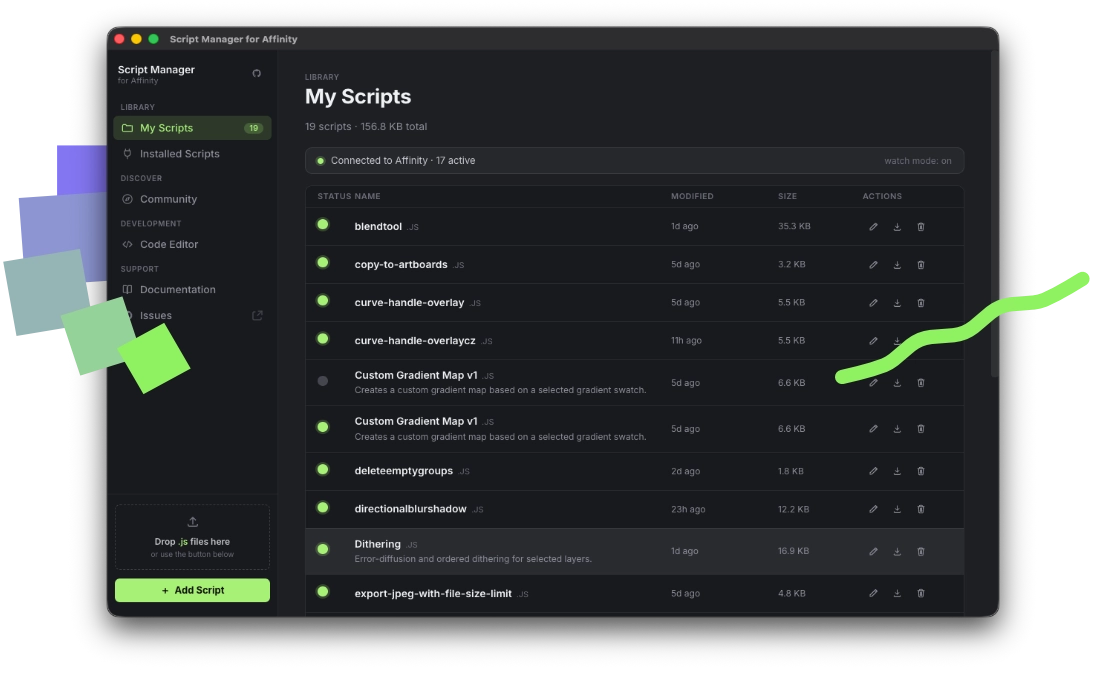
Script Manager for Affinity screenshot

Everything in one place.

A complete interface for your Affinity scripting workflow — no terminal required.

My Scripts
Your local library stored safely on disk. See file size, modification time, and version at a glance. Edit, export, or delete from the UI.
Install to Affinity
Click the dot next to any script — or the whole row — to push it to Affinity via the MCP bridge. Green means live.
Watch Mode
Always on. When you save a script that's already installed in Affinity, the app automatically re-pushes it — no manual step.
Code Editor
Full Ace editor with JavaScript syntax highlighting, dark theme, and Cmd/Ctrl+S to save. Write new scripts from a pre-filled template.
Community Scripts
Browse scripts from any GitHub-hosted registry. Filter, search, and install in one click — or save-only to review before activating.
SDK Documentation
Fetch Affinity SDK docs straight from the MCP server and read them in a clean Markdown reader. Search SDK hints without leaving the app.

Built for sharing, not just using.

Add any creator's GitHub repository to your app with a single paste. The default registry is maintained and open for contributions.

1-click install
Hit Install on any community card — the app downloads the script and pushes it to Affinity simultaneously.
Fork & Edit
Open any community script in the built-in editor. Make it yours and keep it in your local library.
Host your own registry
Create a registry.json in any public GitHub repo and paste the URL into the app. Others can add your repo too.
auto-exporter.js — Code Editor
Save
/** * name: Auto Exporter * description: Exports selected layers as PNG. * version: 1.2.0 * author: you */ async function exportLayers() {const doc = await affinity.getDocument();const layers = doc.selectedLayers;for (const layer of layers) {await layer.exportAs({ format: 'png', scale: 2 });}}

Write scripts without leaving the app.

Full Ace editor with JavaScript syntax highlighting. Start from a pre-filled metadata template or fork a community script and adapt it.

watch mode: on — auto-syncing edits
  • Cmd/Ctrl+S to save — Watch Mode instantly re-pushes to Affinity if the script is already installed
  • New scripts start from a metadata header template, so they're immediately compatible with the registry format
  • Unsaved changes are protected — the app warns before you navigate away
  • Drag and drop .js files onto the sidebar to import them instantly

Scripts not installing into Affinity?

Most install issues are caused by MCP permissions or a missing Scripts panel category inside Affinity.

Check 01
Enable MCP in Affinity
Affinity Script Manager communicates with Affinity through the local MCP bridge. If MCP is disabled or does not have the required permissions, the app cannot push scripts into Affinity.
Check 02
Allow saving to the Scripts panel
Open Affinity settings and check the MCP/AI assistant permissions. Make sure the bridge is allowed to save scripts or workflows to Affinity.
Check 03
Create a Scripts panel category
Affinity needs at least one category in the Scripts panel before scripts can be installed there.
  • In Affinity, open Window → General → Scripts.
  • Click Create New Category and create a category, for example My Scripts.
  • Return to Affinity Script Manager and click the install dot next to your script again.

Up and running in minutes.

The app is unsigned, so macOS needs a one-time permission. Here's how.

01
Download the DMG
Get the latest release from GitHub Releases and open the .dmg file.
02
Drag to Applications
Drag Script Manager into your Applications folder, then try to open it.
03
Allow in Privacy settings
Go to System Settings → Privacy & Security and click Open Anyway.
04
Confirm and launch
Click Open in the confirmation dialog. The app opens normally from this point on.